
he third most visited site on the Internet after Google and Facebook; over the years, YouTube has amassed over 1 billion users with an awe-inspiring 300 hours of videos being uploaded to the site every minute. I find it, perhaps the most productive way of being unproductive and killing time. So how about discovering some YouTube tips and tricks to add a completely new dimension to your YouTube experience.
Common Keyboard Shortcuts:
We begin our YouTube tips and tricks article with the basic keyboard shortcuts which I hope almost everyone will be aware of:
Space-Play/Pause
F-Fullscreen
Esc-Exit Fullscreen
↑-Increase Volume
↓-Decrease Volume
←-Go back 5 Seconds
→-Go forward 5 Seconds
F-Fullscreen
Esc-Exit Fullscreen
↑-Increase Volume
↓-Decrease Volume
←-Go back 5 Seconds
→-Go forward 5 Seconds
In fact you can even skip parts of the video without mouse-clicking on the time slider by simply pressing the number keys on your keyboard. Pressing the 1 key skips 10% of the video, the 2 key skips 20% of the video and so on. Pressing the number 0, takes you back to the start of the video.

Specific Start Time:
This is one handy YouTube trick which allows you to start a video from a specific time instead of having to tell people the specific time where the boring introduction gets over or point to the part of the video where the real fun begins.
Here is how it works. Consider the following YouTube URL:
https://www.youtube.com/watch?v=A0pLbTXPHng
Now to jump to a 1:23 in the video just simply add #t01m23s to the linkhttps://www.youtube.com/watch?v=A0pLbTXPHng#t=01m23s
It would look like this:
https://www.youtube.com/watch?v=A0pLbTXPHng
Now to jump to a 1:23 in the video just simply add #t01m23s to the linkhttps://www.youtube.com/watch?v=A0pLbTXPHng#t=01m23s
It would look like this:
 One more way you could do this is to use the Get Video URL at current timeby right clicking the mouse on the time slider at the desired time and clicking on the Get video URL at current time option.
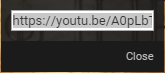
A dialog box containing the link will be generated. Just copy the link and use it to you like.
Turn any video into a GIF:
The next addition in YouTube tips and tricks articles is my favorite.
Who doesn’t like a funny old GIF! Well good news for you, it is pretty simple to create a GIF out of a YouTube video. All you need to do is add the word ‘gif’ just after the ‘www.’ in the URL.
For example: Consider this YouTube URL: https://www.youtube.com/watch?v=9q4qzYrHVmI#
You just have to modify it like this: https://www.gifyoutube.com/watch?v=9q4qzYrHVmI#
It shall redirect you to a page where you can make a GIF as per your required specifications in a matter of minutes. In fact you can even enter captions in your GIF image through this tool.
You just have to modify it like this: https://www.gifyoutube.com/watch?v=9q4qzYrHVmI#
It shall redirect you to a page where you can make a GIF as per your required specifications in a matter of minutes. In fact you can even enter captions in your GIF image through this tool.
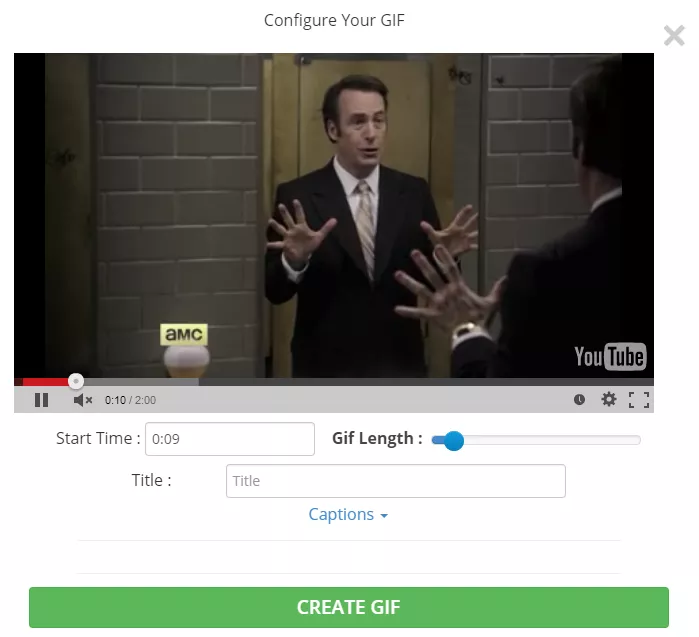
YouTube Tips and Tricks – GIF
Repeat The Complete Video or Parts of it Automatically:
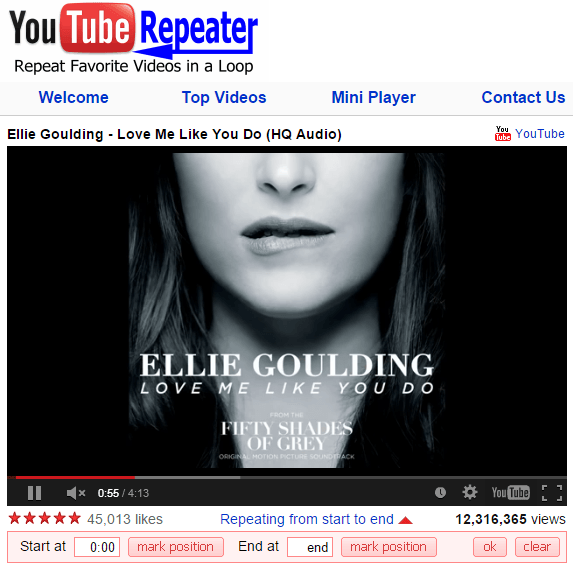
There are times when we stumble upon a video which no matter how much we try we can’t resist watching again and again. It could be a music video, a funny prank or perhaps an awe-inspiring stunt scene from some movie. To repeat certain portion of the video or the complete video all you need to do is to add the word ‘repeater’ after ‘youtube’ in the URL.
For example: Consider this YouTube URL: https://www.youtube.com/watch?v=D6DFLNa6MBA
Just change it to: https://www.youtuberepeater.com/watch?v=D6DFLNa6MBA
Just change it to: https://www.youtuberepeater.com/watch?v=D6DFLNa6MBA
It shall redirect you to a page where you can loop the required portions of the video.
YouTube Leanback:
Watching YouTube videos on your TV using the normal YouTube desktop version can be a cumbersome experience. That’s where the YouTube Leanback feature comes in, it is basically a simplified UI version enhanced for TV which recommends videos for you to watch according to those that you have watched before and can be controlled simply using arrow keys.
In fact you can even pair you smartphone or tablet for having a hassle free experience.
Bypass Regional Restrictions and Blocks:
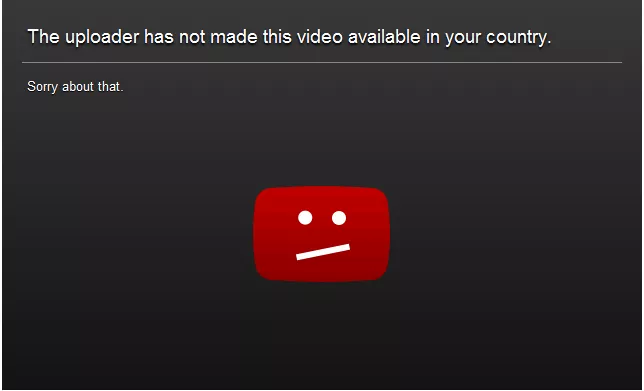
YouTube Tips and Tricks – Bypassing Location Restriction
I am sure almost all of us would have encountered the irritating experience of opening up a pretty hyped video only to stumble across a block which prevents us from playing the video. YouTube tips and tricks isn’t complete without this.
In order to bypass this restriction, simply change the format of the link from this: https://www.youtube.com/watch/?v=dD40FXFhuag
To this: https://www.youtube.com/v/dD40FXFhuag
To this: https://www.youtube.com/v/dD40FXFhuag
Download YouTube Videos:
Wish to download a YouTube video so that you can watch it sometime later. All you need to do is add ‘ss’ after ‘www.’ in the URL of the YouTube video.
For example: Consider this YouTube URL: https://www.youtube.com/watch?v=eisKxhjBnZ0
Just change it to: https://www.ssyoutube.com/watch?v=eisKxhjBnZ0
Just change it to: https://www.ssyoutube.com/watch?v=eisKxhjBnZ0
You will be redirected to a page from where you can download the video in the desired quality and format.
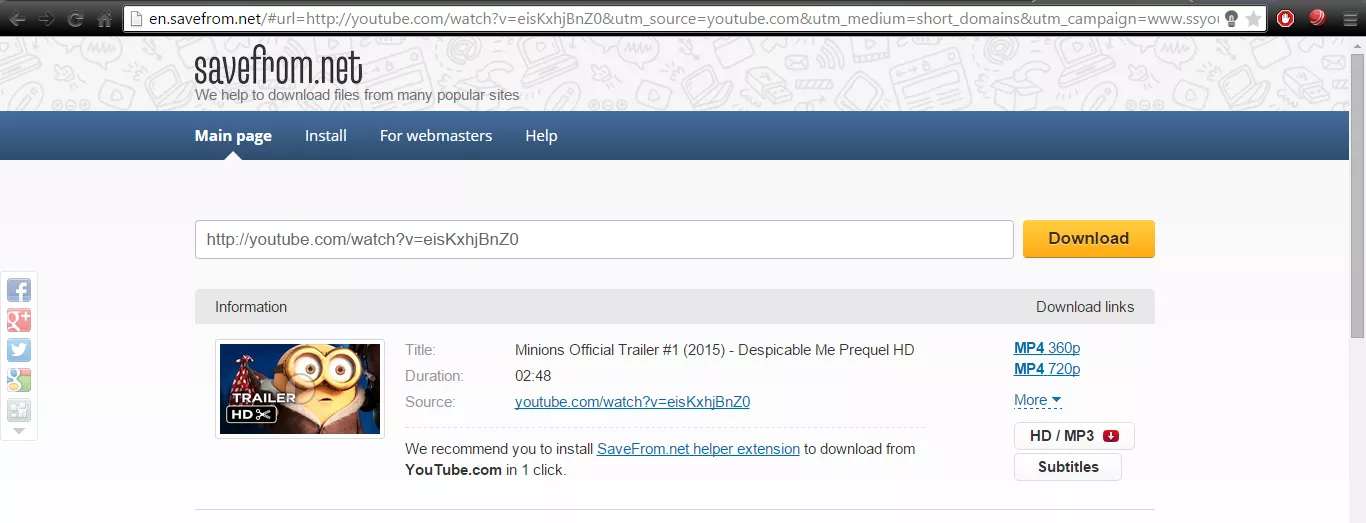
YouTube Tips and Tricks – Video Downloading
Just be careful that downloading the video doesn’t infringe the copyrights of the owner.
Accurate Keyword Searching:
Finding the exact video that you want to watch on YouTube can prove to be a time-consuming experience provided the fact that there are billions of videos on the site with more and more being added every day. To refine your search and reduce the time involved in finding your desired video try using theallintitle keyword.
 Doing so will return you results which have all the chosen keywords.
Other Common YouTube Tips and Tricks That You Might Have Overlooked:
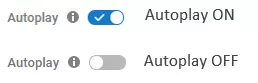
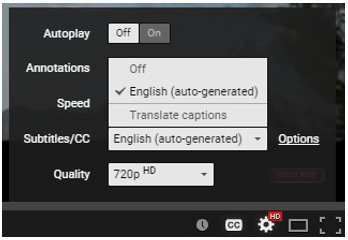
Autoplay- In case you do not want to play the suggested video after the one that you are watching currently, just disable the autoplay feature found towards the right corner of the page.
Speed- You can alter the speed of the video and play it faster or slower to your like. Just click on Setting on the time slider, go to Speed and then choose the speed that you prefer.
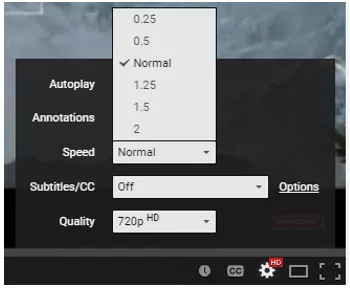
Subtitles- You can even enable subtitles for a video in YouTube. Head to settings on the time slider and then click on Subtitles and turn them on! Although, this feature is not available for some videos.
YouTube Tools – Most people might not be aware but YouTube also provides certain tools so as to help the user in creating new content. There are a variety of tools from Analytics to the Video Editor which you should definitely try using at-least once.
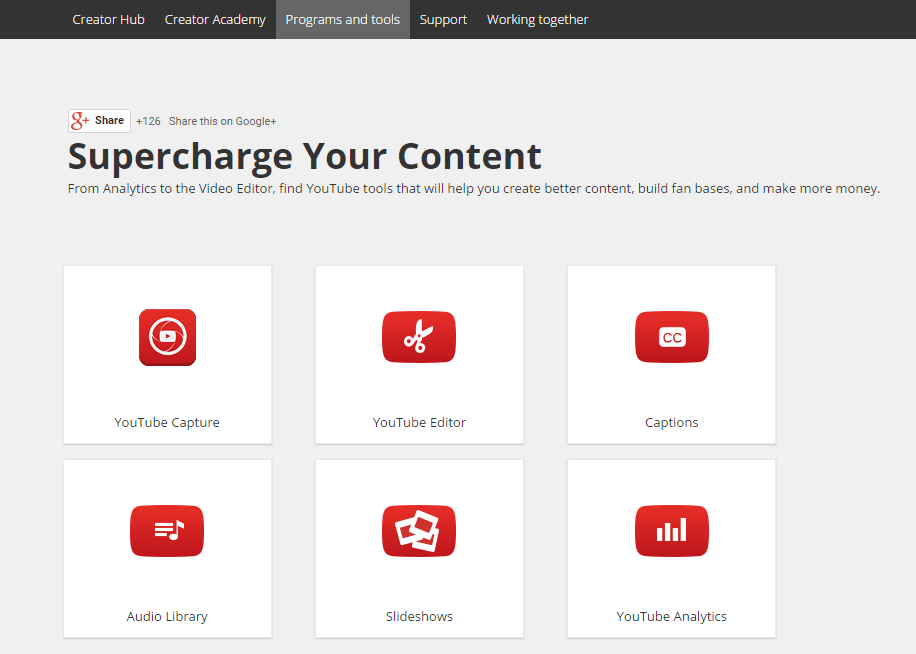
YouTube Tips and Tricks – YouTube tools
Click here to start exploring more YouTube tips and tricks for yourself.


